
A paywall is the moment of truth on a content site. A reader has found your article, read the opening, and now has to decide whether you are worth paying for. A good paywall makes that decision easy. A bad one, usually a grey box saying “This content is restricted”, sends people straight back to Google.
This guide explains the three types of paywall, which one suits your site, and how to create a paywall in WordPress that shows a teaser, blurs the rest and turns readers into members. We will also be honest about what each approach is not good at.
Key takeaways
What Is a Paywall?
A paywall is a barrier that limits access to content until a visitor pays or subscribes. On a WordPress site it usually shows part of an article, then a message with a button to join. Members who are logged in see the full article; everyone else sees the teaser and the offer.
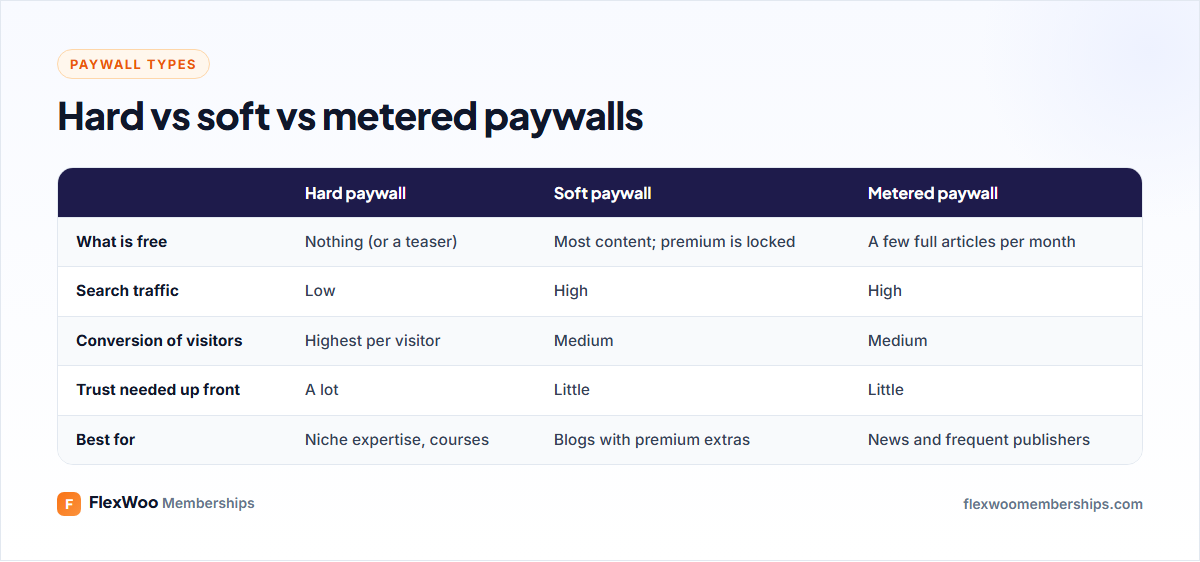
Hard vs Soft vs Metered Paywalls
Hard paywall
Everything is locked; visitors see only a teaser or a sales page. It converts the highest share of visitors who arrive, but fewer people arrive, because there is little to find in search and little to share. It works when you have a reputation or very specific expertise people already want.
Soft (freemium) paywall
Most content is free; premium pieces are locked. Free articles bring search traffic and build trust; premium ones convert the readers who want more. This is the best fit for most blogs, newsletters and niche publishers.
Metered paywall
Visitors get a set number of full articles free each month, then hit the wall. It suits publishers with lots of fresh content and frequent visitors, like news sites. It needs a way to count views per visitor, usually with a cookie, which can be fiddly with page caching.
Which Paywall Should You Use?
| If you… | Use |
|---|---|
| Publish a few deep, premium guides a month | Soft paywall on the premium guides |
| Run a course or a private community | Hard paywall, with a free sample lesson |
| Publish daily and have many returning readers | Metered paywall |
| Rely on Google for most new visitors | Soft paywall with an indexable teaser |
What Makes a Paywall Convert
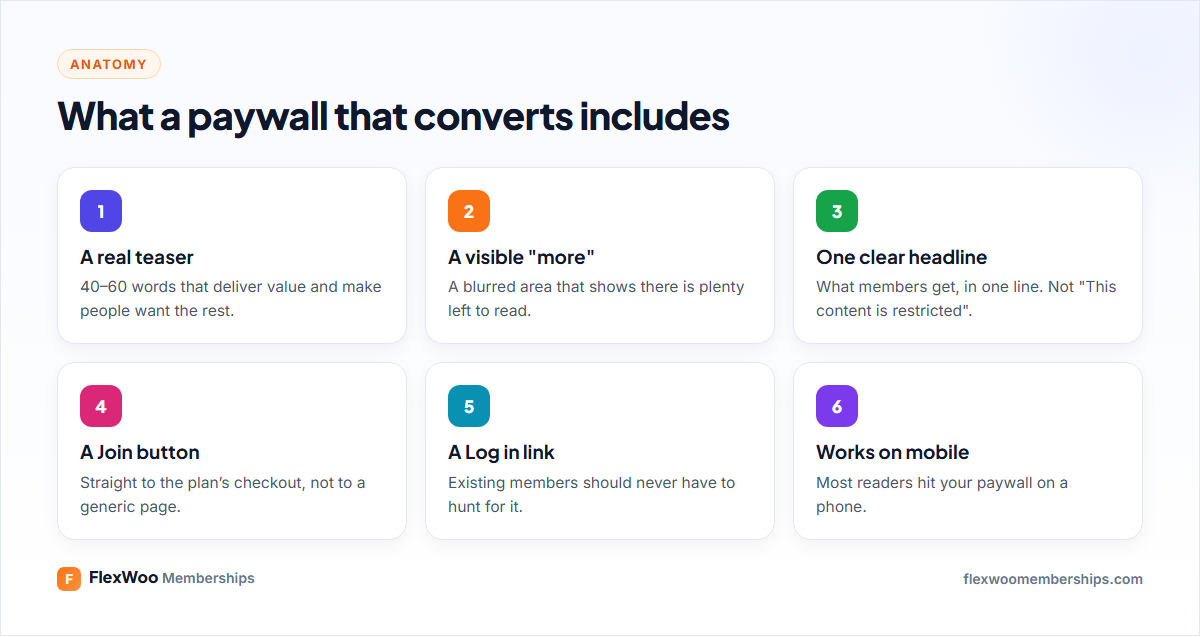
The teaser deserves special attention. Do not cut the article mid-sentence after an intro that says nothing. Write the opening so it delivers something useful on its own, then the paywall appears right when the reader wants the next part. Around 40–60 words, one or two short paragraphs, is a good default.
How to Create a Soft Paywall in WordPress
With FlexWoo Memberships on WooCommerce, the paywall is part of content restriction. Here is the full setup.
Step 1: Create a membership plan
Create a plan under FW Memberships → Memberships → Membership Plans, and link it to a subscription product so readers can pay monthly or yearly. See how to create a membership site with WooCommerce for the details.
Step 2: Mark your premium content
Create a “Premium” category and unlock it in the plan. Every post you publish in that category is now behind the paywall, and everything else stays free.
Step 3: Turn on the paywall
Go to FW Memberships → Content Restriction → Restriction Rules and choose Show Paywall & Teaser for posts.
Step 4: Design the paywall card
Open Content Restriction → Paywall & Teasers. A live preview shows the card as a logged-out visitor would see it, on desktop and mobile. Set:

Step 5: Choose the teaser length and protection
Choose how many words non-members see above the card, anywhere from 0 to 300. The blurred area below is made of placeholder lines, so the rest of the post is never sent to the browser. That matters: some paywalls only hide the text with CSS, and anyone can read it by viewing the page source.
On the same screen, decide whether search engines may index protected posts and whether RSS feeds hide them.
Plan note: the paywall card design and teaser are FlexWoo Memberships Pro features. The free plugin can protect content with a redirect or alternative text.
How to Create a Hard Paywall
For a hard paywall, unlock all posts (or all pages in your members area) in the plan, and choose a redirect to your pricing page for non-members. Keep one or two free sample pieces outside the plan so visitors can judge your work before buying.
What About Metered Paywalls?
To be straightforward: FlexWoo Memberships does not include a metered “X free articles a month” counter. If metering is central to your model, look at a dedicated paywall plugin built for publishers. For most small and medium sites, a soft paywall on premium content converts well without the complexity of counting views.
Paywalls and SEO
A soft paywall and SEO get along fine. Free articles rank as usual. For premium articles, you can let search engines index the teaser so people can still find the page. If you show Google more than visitors see, mark the locked part with Google’s paywalled content structured data, so it is not mistaken for cloaking.
Make Locked Content Work Elsewhere Too
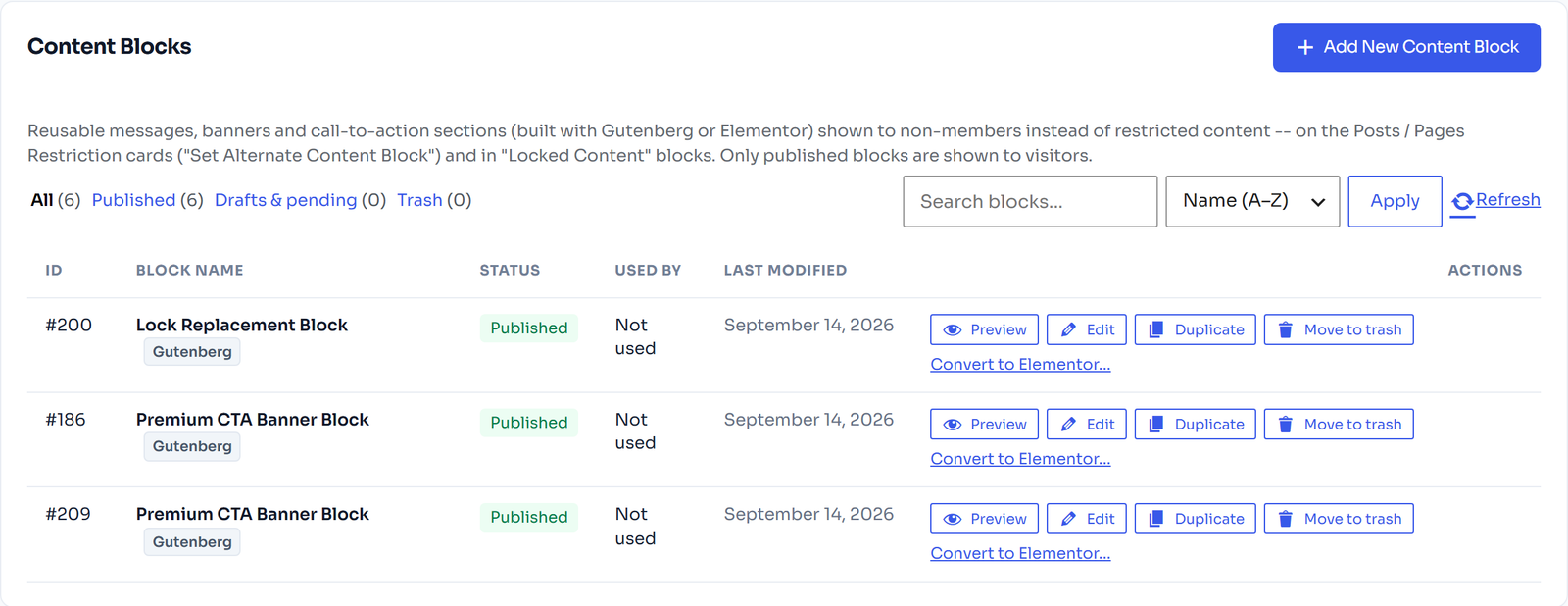
The same idea works beyond articles. With Pro you can lock a section inside any page with the Member Locked Content block or the [flexwoo_locked] shortcode, show a designed content block (a pricing table, a video) instead of a plain message, or lock downloads. Our main guide to restricting content in WordPress covers every option.
FAQ: WordPress Paywalls
Build a Paywall Readers Do Not Hate
The best paywalls feel like an invitation, not a slammed door. Give readers a genuinely useful opening, show them there is more, and make joining one click away. Start with a soft paywall on your best content, watch which posts convert, and write more like those.