Here is a surprise for many store owners: WooCommerce cannot sell a subscription out of the box. You can sell a product, a download or a booking, but “charge this customer $15 every month until they cancel” needs an extra plugin. The official one costs $279 a year.
This guide shows you how to sell subscriptions in WooCommerce without overpaying: what your options are, how to set up a subscription product step by step, how renewals actually get charged, and the settings that keep cancellations and failed payments under control.
Key takeaways
Can WooCommerce Sell Subscriptions on Its Own?
No. Core WooCommerce handles one-off payments only. To sell subscriptions in WooCommerce you need a plugin that adds a subscription product type, creates renewal orders on schedule and charges the customer’s saved payment method each time. You also need a payment gateway that supports charging customers again without them being at the checkout.
Your Options for WooCommerce Subscriptions
Option 1: WooCommerce Subscriptions (official)
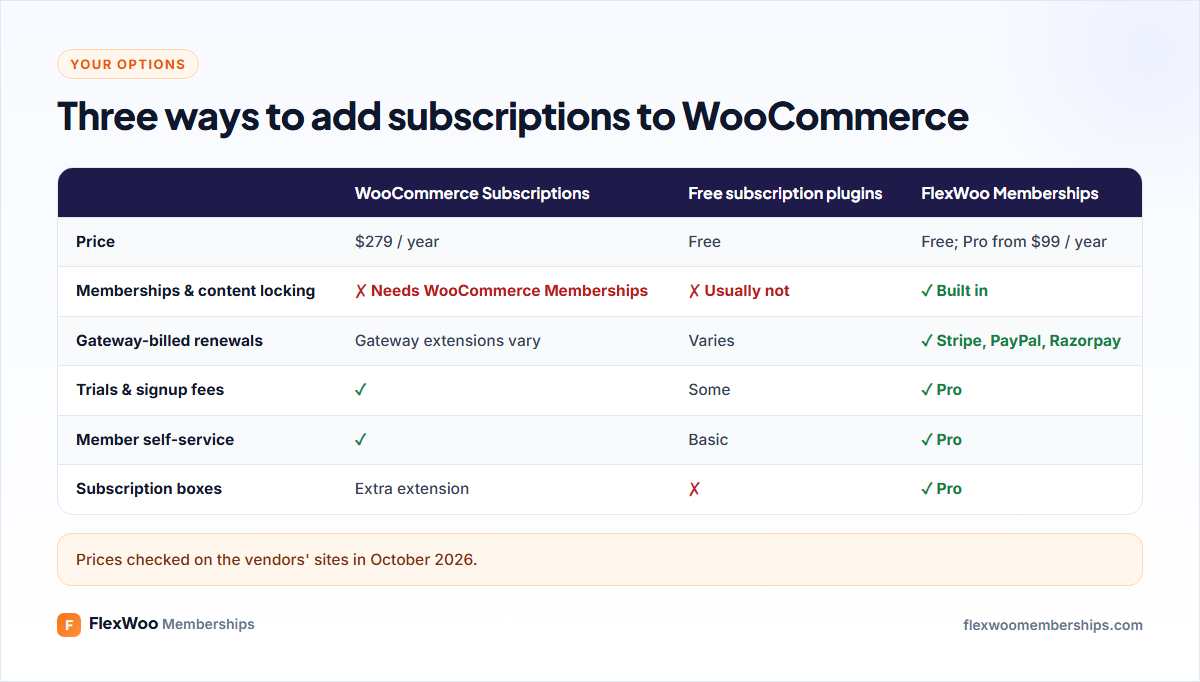
The official extension from WooCommerce.com is mature and widely supported. It costs $279 a year for one site. It does subscriptions only: if you also want to lock content for subscribers, you need WooCommerce Memberships at $199 a year on top.
Option 2: Free subscription plugins
Several free plugins on WordPress.org add basic recurring billing. They work for simple cases, but check carefully which gateways they support for automatic renewals, whether they handle failed payments, and whether they work with the block-based checkout.
Option 3: A membership plugin with subscriptions built in
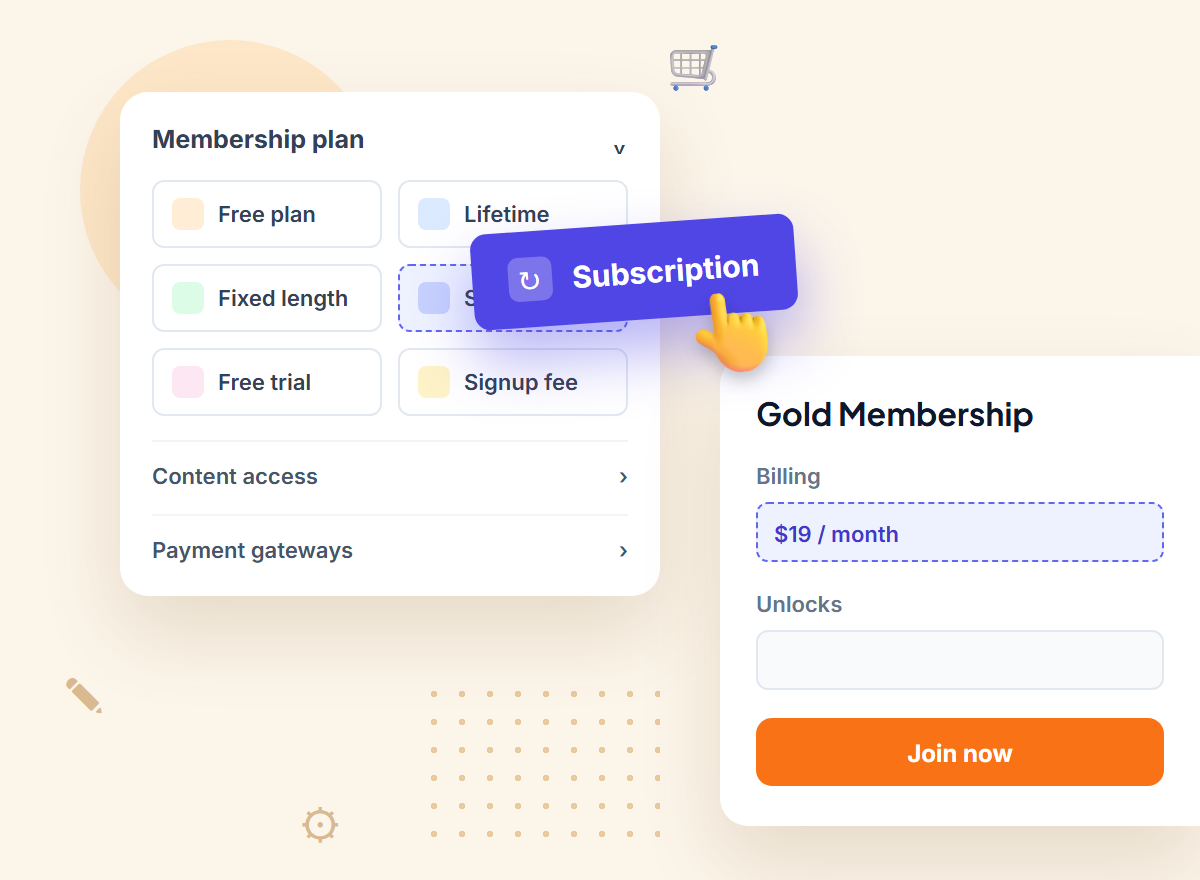
This is the route we took when we built FlexWoo Memberships. Subscriptions and memberships live in one plugin, so a subscriber can be billed monthly and unlock content, discounts or downloads at the same time. The free version bills on daily and weekly cycles; Pro adds monthly and yearly billing, trials and signup fees.
The rest of this guide uses FlexWoo, but the concepts apply to any subscription plugin.
What You Can Sell as a Subscription
Step 1: Install the Plugin and a Recurring Gateway
Install FlexWoo Memberships from Plugins → Add New Plugin and activate it. Then install one of the free FlexWoo gateways for automatic renewals:
Not sure which one? Read Stripe vs PayPal for membership sites. Many stores offer both.
Step 2: Turn a Product Into a Subscription
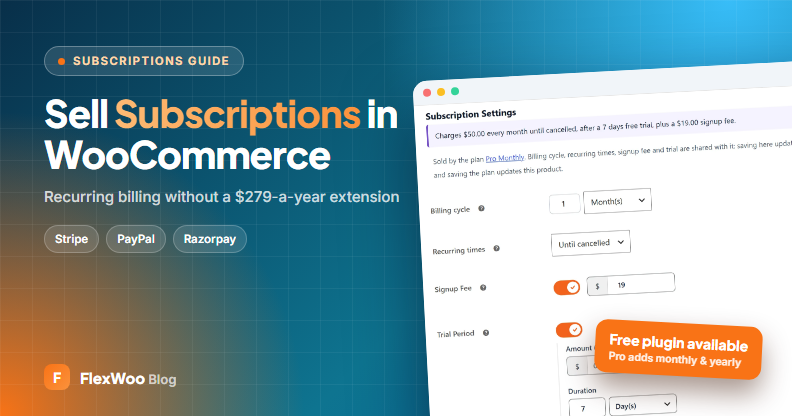
Edit the product you want to sell on repeat, or create a new one. Under Product data, tick Subscription. A Subscription Settings section appears.
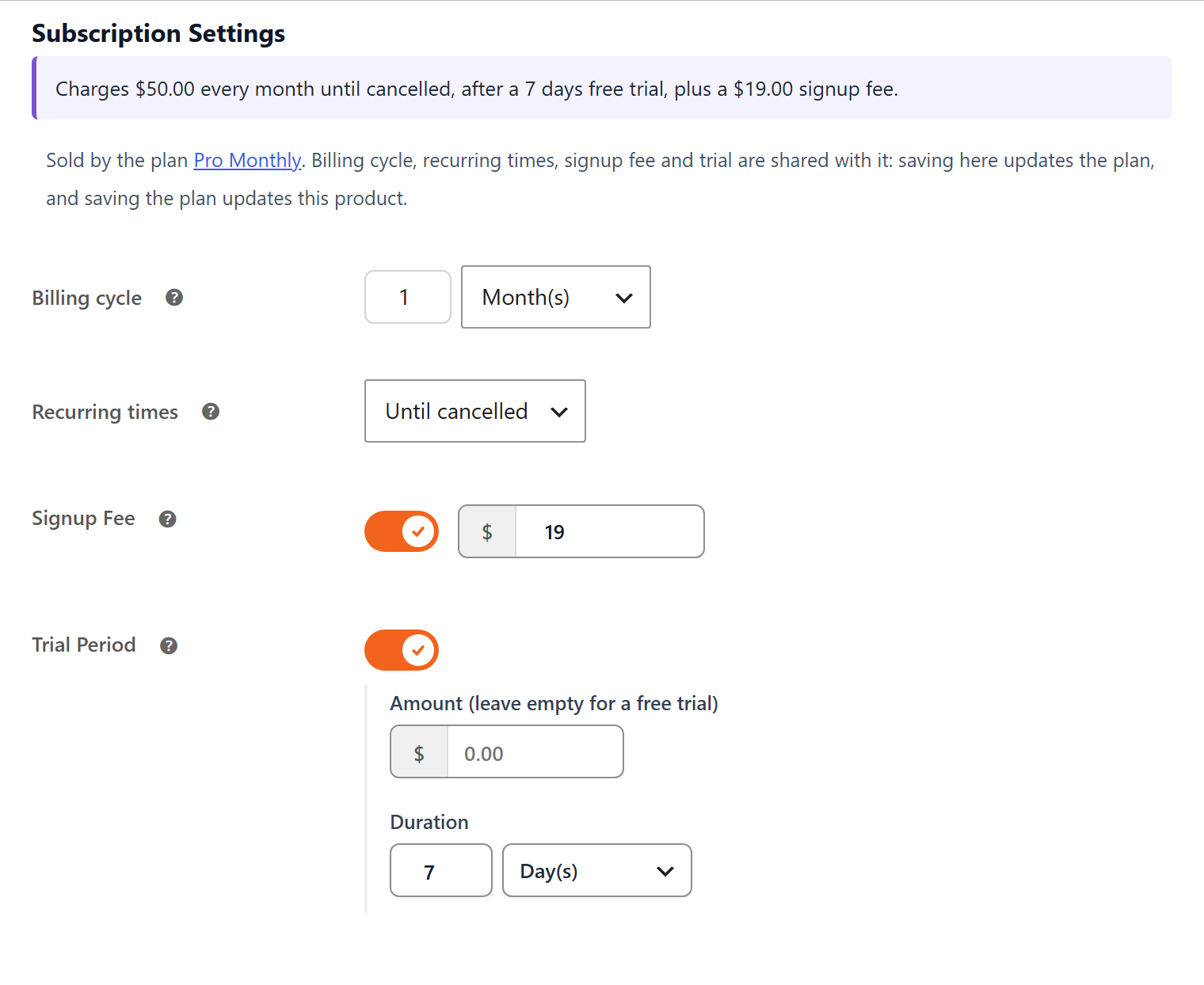
Free vs Pro: the free plugin offers billing every 1–7 days or 1–3 weeks, which suits weekly deliveries and classes. Monthly and yearly billing, trials and signup fees come with FlexWoo Memberships Pro.
Variable products work too: you can make each variation its own subscription, such as a 250g bag every two weeks or a 1kg bag every month.
Step 3: Link It to a Membership (Optional)
If subscribers should also unlock something, like content, member pricing or downloads, create a Subscription plan under FW Memberships → Memberships → Membership Plans and link it to the product. The membership then starts, renews, pauses and ends together with the subscription. If you only sell a recurring product, you can skip this step.
Step 4: Choose Who Charges Renewals
This is a setting most plugins do not give you, and it matters more than it sounds. Under FW Memberships → Subscriptions → Settings → Renewal payments you choose between:
| Charged by Stripe / PayPal / Razorpay | Charged by this site | |
|---|---|---|
| How it works | The subscription is created in the gateway, which charges each renewal | Your site creates a renewal order and charges the saved payment method |
| If your site is down | Renewals still happen | Renewals wait until the site is back |
| Where you see it | In the gateway’s Subscriptions tab and in WooCommerce | In WooCommerce; the gateway shows the payments |
| Good for | Most stores (the default) | Complex pricing and full control of each order |
Both need working webhooks, so the gateway can tell your site what happened. Our article on how subscription renewals work goes deeper.
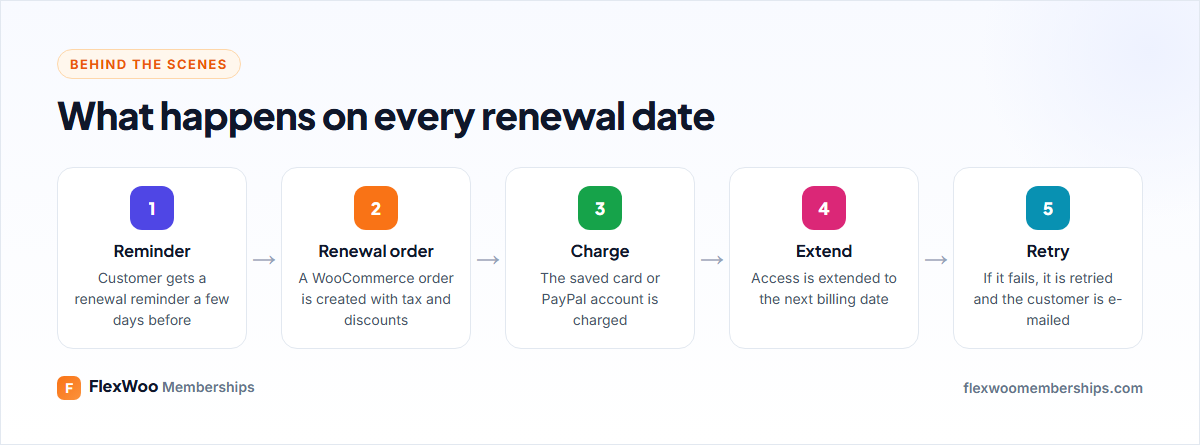
Step 5: Set Your Subscription Rules
Under FW Memberships → Subscriptions → Settings you decide the store-wide rules. The ones worth thinking about before launch:
You can override pausing and cancellation rules per product, for example no cancelling in the first three months of a 12-month payment plan.
Step 6: Make the Price Crystal Clear
Subscription checkouts lose people when the price is vague. Under Subscriptions → Customization you can show the billing cycle next to the price (“$15 / month”), the trial and signup fee under it, and the recurring total and first renewal date in the cart. Clear prices mean fewer abandoned carts and fewer “I did not know I would be charged again” e-mails.
Step 7: Run a Real Renewal Test
Before you sell to real customers, put your gateway in test mode, buy a daily subscription with a test card, and let it renew once. Check that a renewal order appears, the payment succeeds and the next payment date moves forward. Then cancel it and confirm access ends when you expect.
Also set up a real server cron job: FW Memberships → Tools → Cron Jobs shows the exact command for your site. WordPress’s built-in scheduler only runs when someone visits, which is not good enough for billing.
Managing Subscriptions Day to Day
All your subscribers are listed under FW Memberships → Subscriptions → All Subscriptions, with amount, cycle, gateway, next billing date and status. The cards at the top show active and paused subscriptions, monthly recurring revenue, failed payments and renewals due in the next seven days.
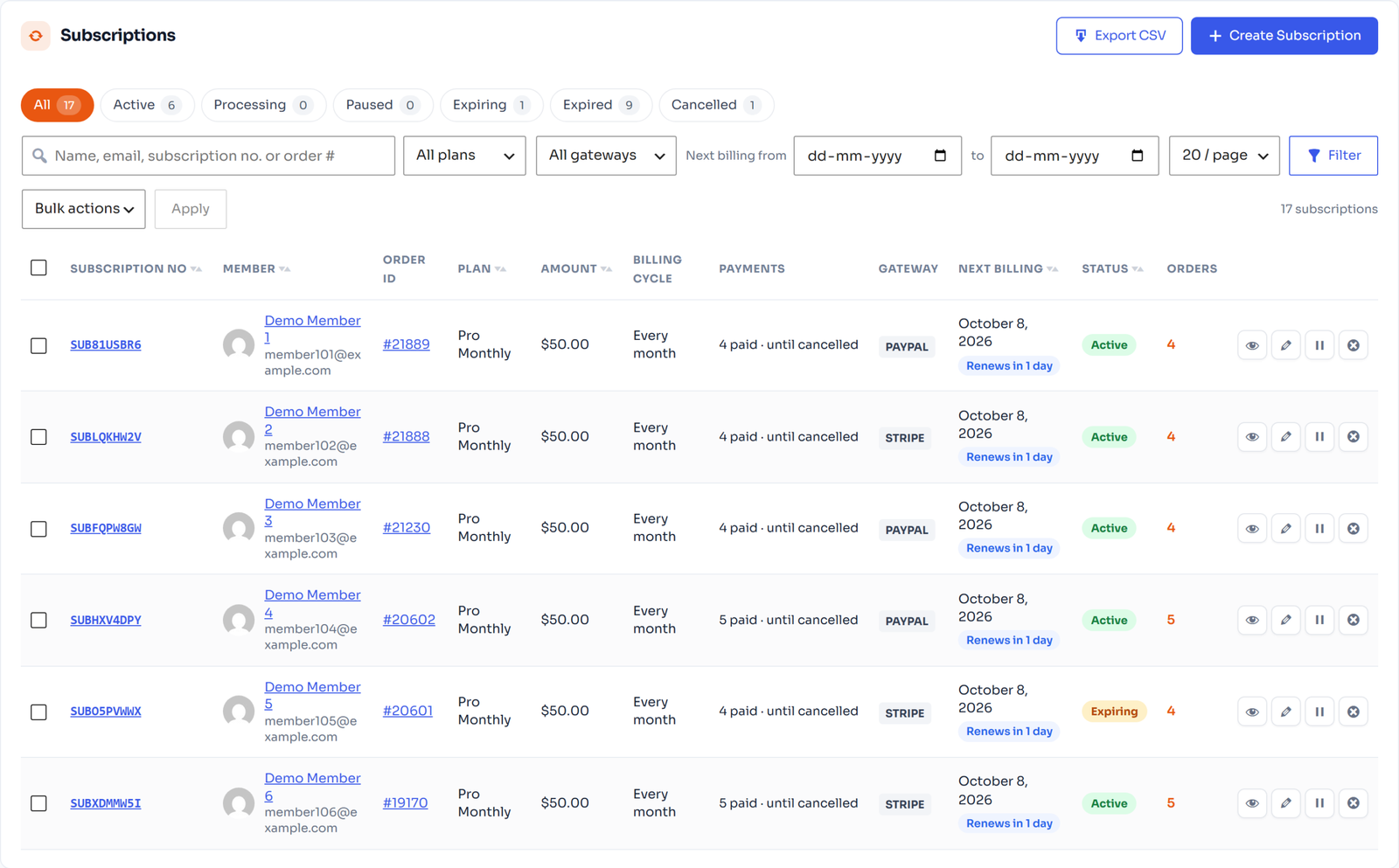
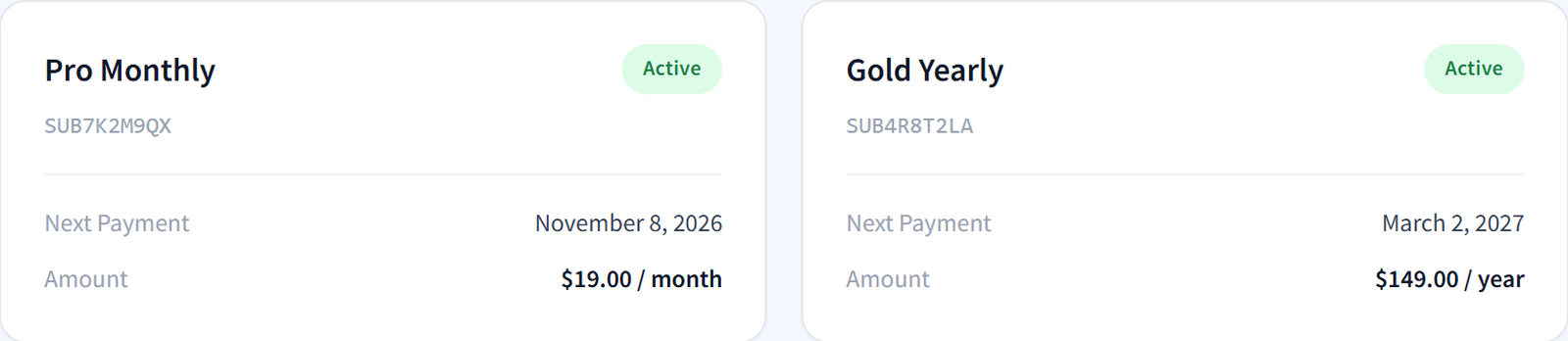
The Subscription Activities log records every renewal, failure, pause and cancellation. It is the first place to look when a customer asks why they were charged. Customers, meanwhile, see their subscriptions in My Account, and with Pro they can switch, pause and cancel themselves.
Tips to Keep Subscribers Longer
FAQ: Selling Subscriptions in WooCommerce
Start Selling on Repeat
Recurring revenue changes how a store feels. Instead of starting every month at zero, you start with the subscribers you already have. Pick a plugin that fits your budget, set up one subscription product, test a renewal properly, and grow from there.